Lightning Talk
OpenClaw setup from a phone-first dev stack
Use to move
Press N for notes
Press F for fullscreen
OpenClaw / Mobile Setup

OpenClaw on a Phone

Turn an Android handset into a portable OpenClaw host, dev box, and messaging gateway.

The path is simple: install the Android-side tools, bootstrap a Linux userland, expose SSH, and drive the workflow from a laptop with standard remote-dev tooling.

No root required Termux + `proot-distro` gives us a Debian userland on stock Android.
Personal setup VM The phone can act like a pocket Linux box for OpenClaw, tools, and experiments when you do not want to carry a larger machine.
Remote-first The laptop stays the main editor, but with a monitor, keyboard, and mouse the phone can also expose VS Code and behave like a compact development computer.

Deployment chain

F-DroidF Droid is an alternative Android app store focused on free and open source software. Compared with Google Play, it gives you more openness and direct access, but also puts more responsibility on you to verify sources and manage updates carefully.
TermuxAndroid shell and package entrypoint
`tmux` + `openssh`Long-running sessions and remote access
`proot-distro` + DebianReal Linux userland for tooling
VS Code / Codex / OpenClaw with WhatsAppDevelopment, coding assistance, and user-facing automation on one mobile-hosted stack.
Slide 2 / Architecture

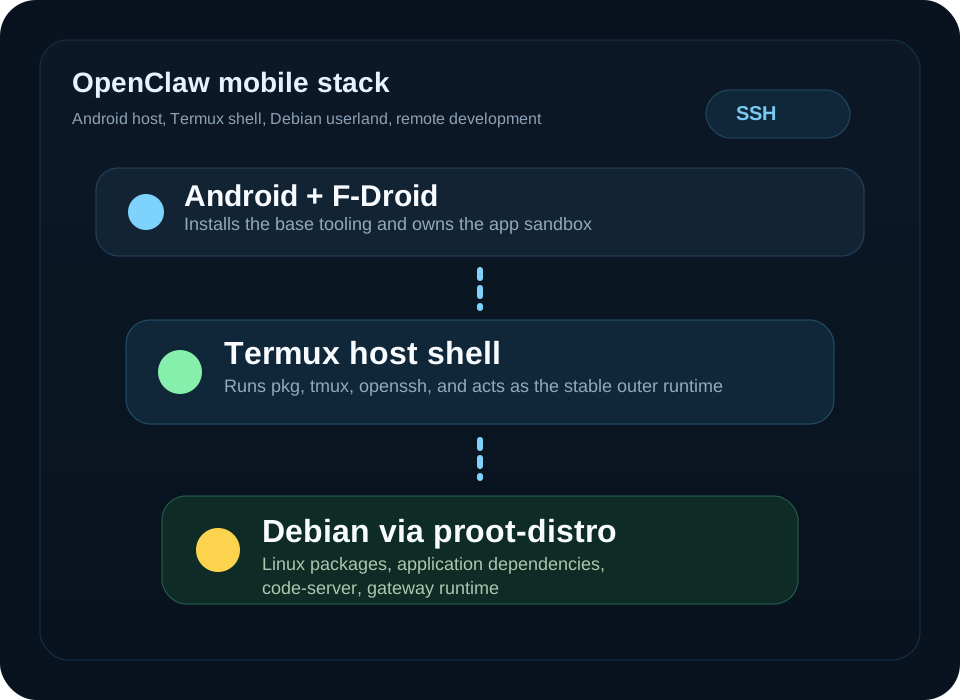
The mobile stack is just layered Linux

Android stays the host OS. Termux provides the first shell, `tmux` keeps services alive, `proot-distro` adds Debian, and SSH gives the laptop a normal remote target.

  • Why split it this way: use Termux for Android integration, and Debian for heavier Linux tooling. Debian makes it easier to install familiar packages and use a standard Linux development environment.
  • Why Termux from F-Droid: the Play Store build is deprecated and no longer the recommended version because of Android platform restrictions and compatibility issues. F-Droid and GitHub releases are the supported, more current options.
  • Why SSH: lets the laptop use normal editor, terminal, and file workflows without inventing a new toolchain.
Layered OpenClaw mobile stack diagram

Think of the phone as a compact server: Android underneath, Termux as the host shell, Debian for the application runtime.
Slide 3 / Bootstrap

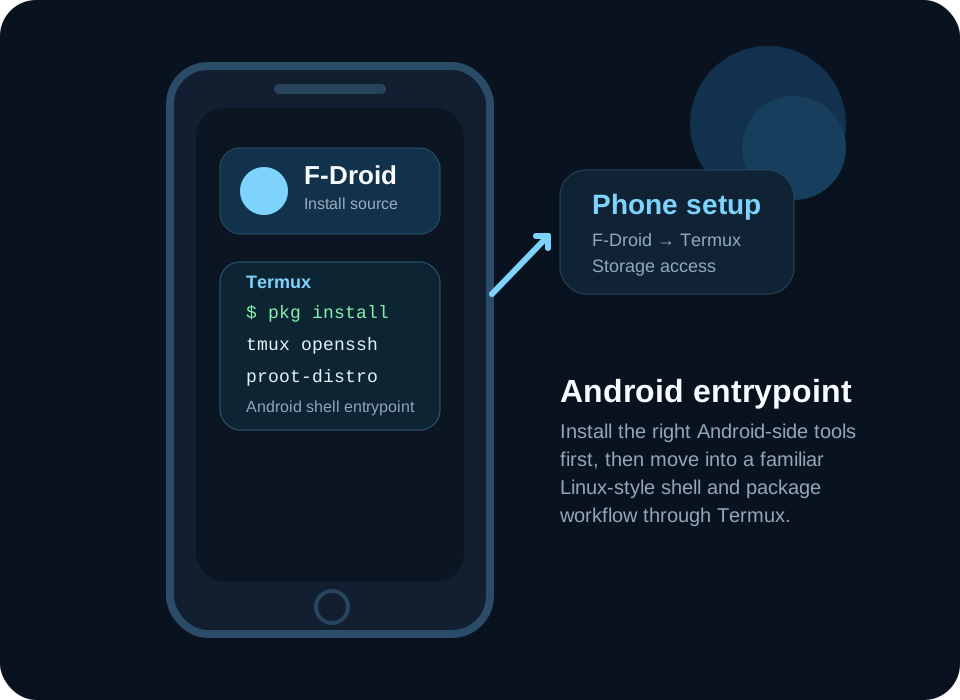
Step 1: install F-Droid and Termux

We start with the Android-side package source and shell. This is the only part that feels like phone setup; everything after this is standard terminal work.

1. Download the F-Droid APK from f-droid.org and install it
2. Install Termux from F-Droid
3. Launch Termux
4. termux-setup-storage
Why F-Droid? We want Linux for a familiar workflow, and F-Droid gives us the current Termux build that opens that path on Android.
Why storage access? Useful for moving files, pulling repos, logs, and any exported assets that need to leave the app sandbox.
Phone mockup showing F-Droid and Termux setup
Android app install
Package source
Shell entrypoint
Slide 4 / Host Runtime

Step 2: bootstrap the Termux host

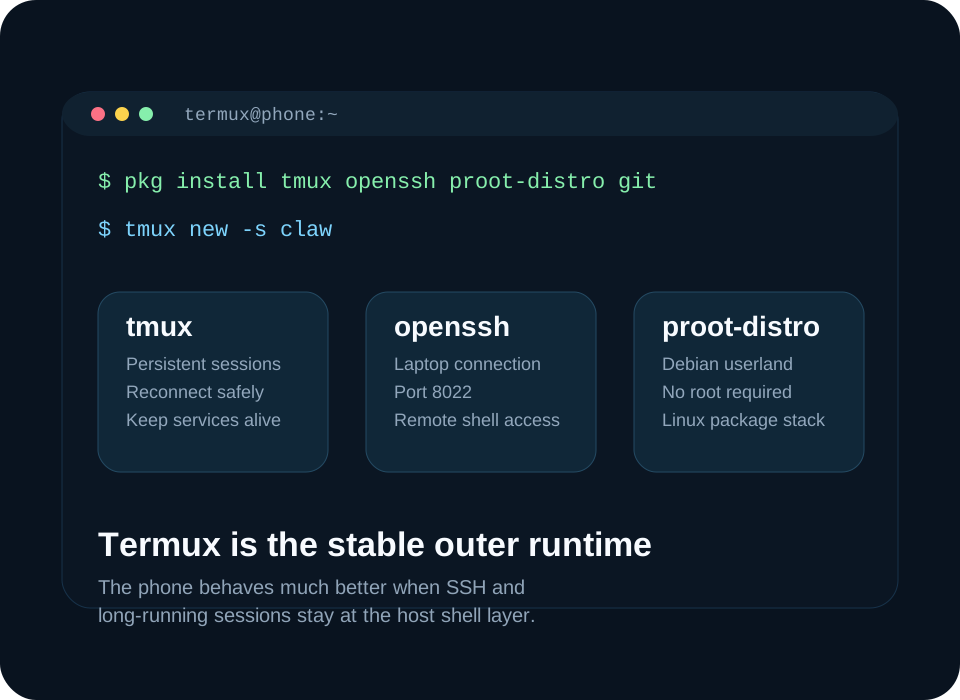
Before Debian exists, we set up the host shell that will keep sessions alive and expose access to the laptop.

pkg update && pkg upgrade
pkg install tmux openssh proot-distro git
tmux new -s claw
  • `tmux`: keeps the session alive if the app is backgrounded or the network drops.
  • `openssh`: exposes the phone as a normal SSH host for the laptop.
  • `proot-distro`: gives us a Debian userland without requiring root.
Termux host runtime diagram

The outer shell stays in Termux. That is where the long-running session and SSH service should live.
Slide 5 / Linux Userland

Step 3: install Debian inside `proot-distro`

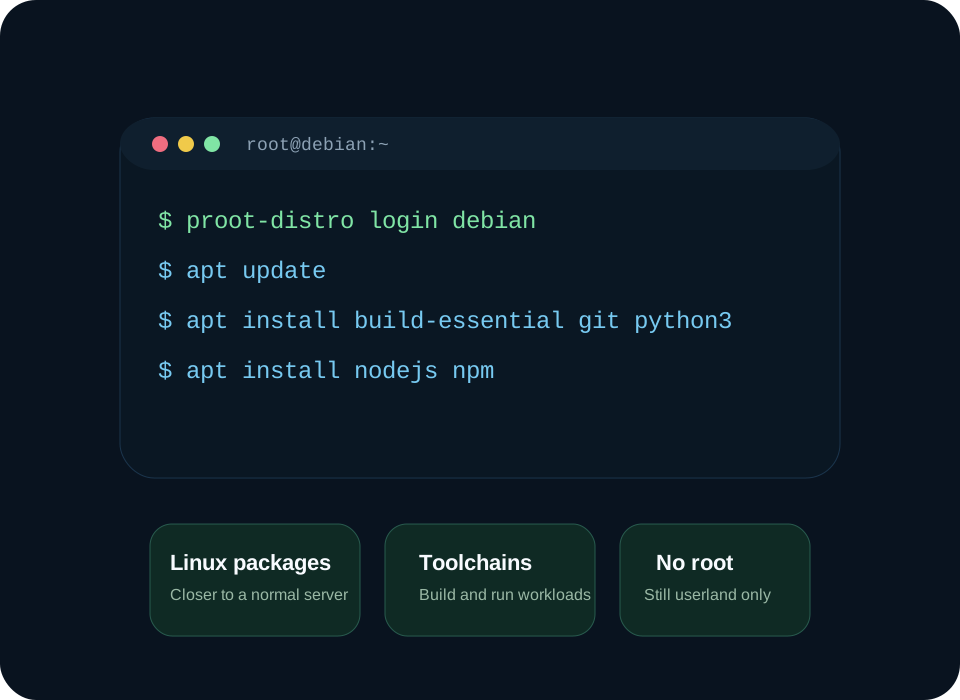
Now we add a standard Linux environment for packages, build tools, and application dependencies. This is where the OpenClaw app stack can look like a regular server setup.

proot-distro install debian
proot-distro login debian
apt update
apt install build-essential git python3 nodejs npm
Good fit for Toolchains, package managers, scripts, app dependencies, and optional web IDE tooling.
Watch for CPU, memory, battery, and any package assumptions that expect full systemd or root privileges.
Debian inside proot-distro illustration
No root
Linux packages
Closer to prod
Slide 6 / Optional On-Device IDE

Milestone 1: use the phone as the workstation

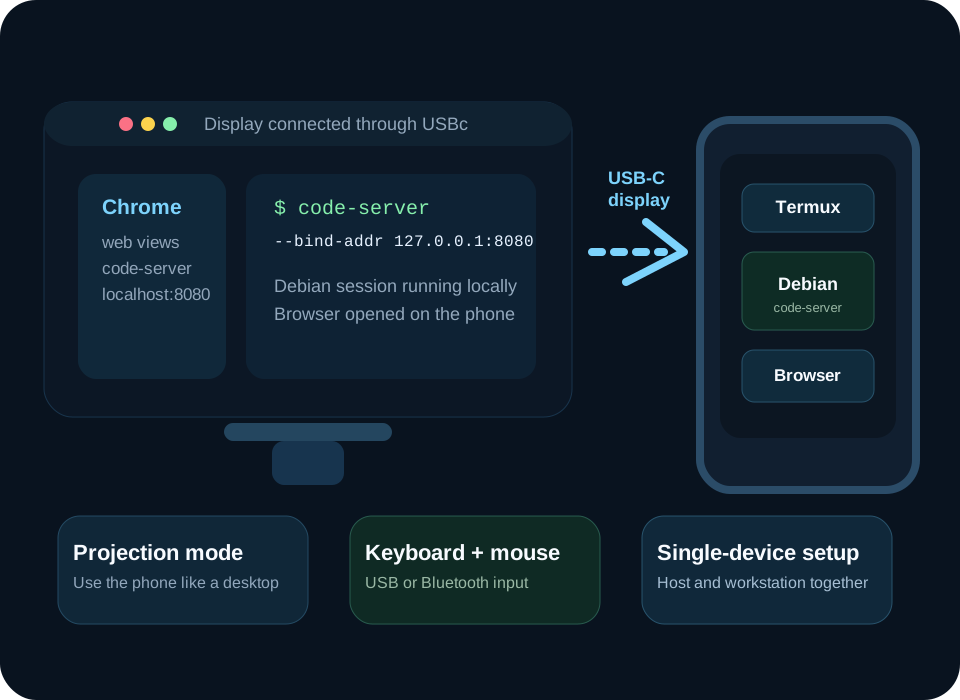
Instead of connecting from a laptop, some phones can project to an external screen. With a monitor, keyboard, and mouse, the phone can act as both the server and the development machine.

# connect phone to monitor over USB-C
# attach keyboard and mouse
proot-distro login debian
npm install -g code-server
npm install -g @openai/codex
code-server --bind-addr 127.0.0.1:8080

# on the phone browser
open http://127.0.0.1:8080
Good when You want a fully self-contained setup where the phone is both the host and the machine you work from.
Tradeoff Projection mode and peripherals help a lot, but CPU, RAM, battery, and browser-based IDE overhead still limit the experience.
code-server workflow illustration

On phones with a good desktop projection mode, this turns the device into a small all-in-one development machine, not just a remote host.
Slide 7 / Remote Development

Milestone 2: expose SSH and use the laptop as the editor [termux]

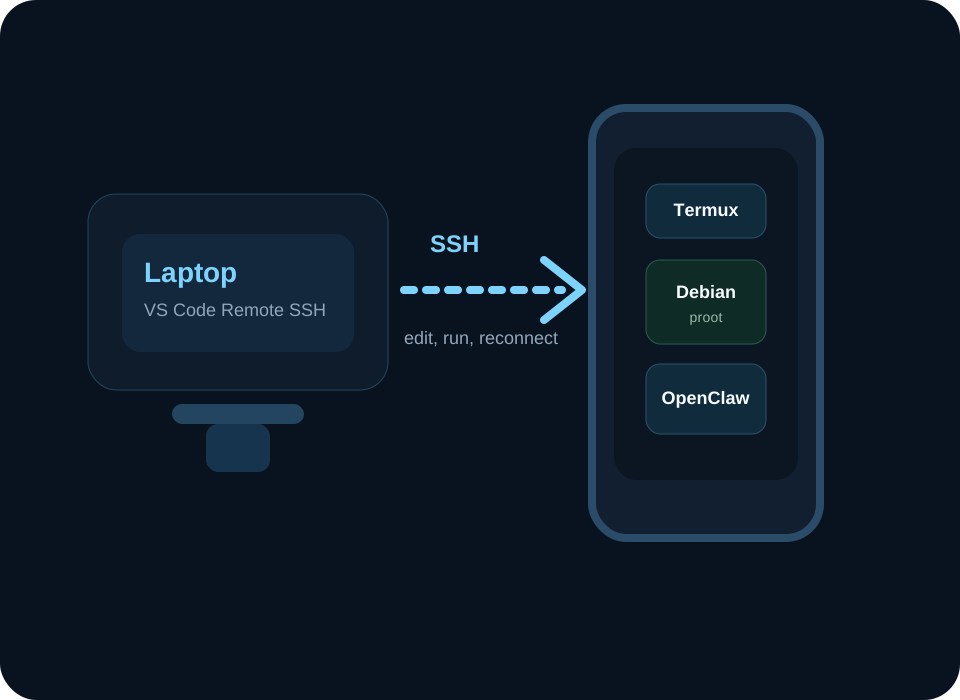
The laptop stays the main development machine. The phone is just another remote server, which means we can use standard SSH and VS Code Remote workflows.

# on Termux
ip addr show wlan0 # get <phone-ip>
whoami # get <termux-user>
passwd
sshd -D -d -p 2222

# connect from the 
ssh termux
  • VS Code flow: add the host to `~/.ssh/config`, then connect with Remote SSH using the `termux` alias.
  • `sshd` flags: `-D` keeps the server in the foreground, `-d` turns on debug logging, and `-p 2222` binds SSH to port `2222` instead of the default.
  • Port forward: `LocalForward 18080 127.0.0.1:18080` exposes the phone-side local service on your laptop at `127.0.0.1:18080`.
Laptop connecting to phone over SSH

This is the comfort win: your editor, Git tooling, terminals, and debugging stay where you already want them.
Slide 8 / Remote Development

Milestone 2: expose SSH and use the laptop as the editor [debian]

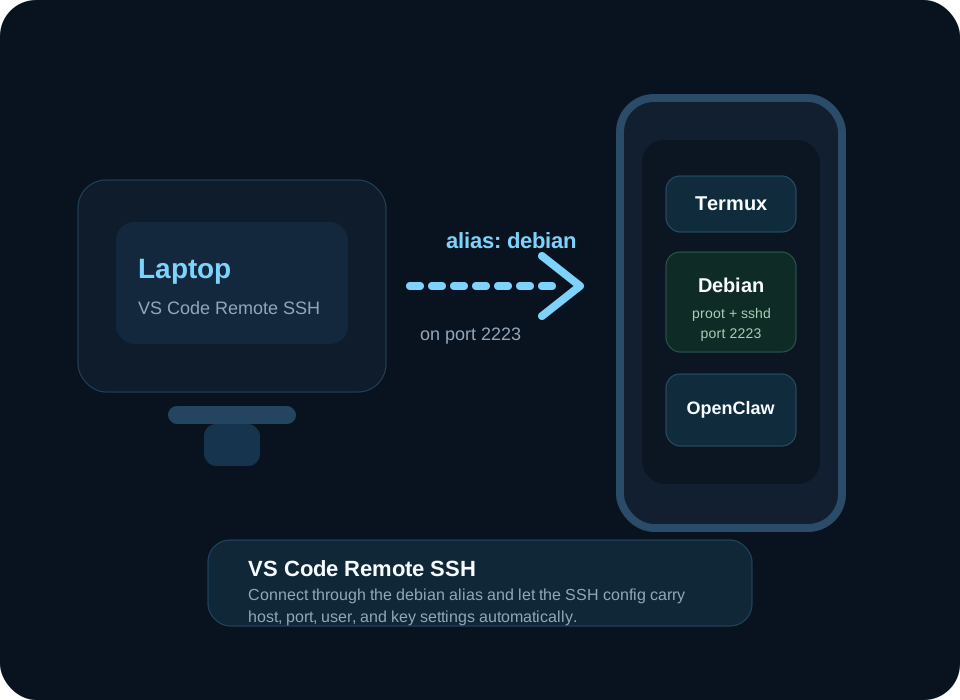
Debian runs inside Termux and `proot`, but the SSH server lives inside Debian. Use public key auth, point the host alias at the current `wlan0` address, and connect either through VS Code Remote SSH or plain `ssh -T`.

# inside Debian
ip addr show wlan0
mkdir -p ~/.ssh && chmod 700 ~/.ssh
nano ~/.ssh/authorized_keys
chmod 600 ~/.ssh/authorized_keys
/usr/sbin/sshd -D -e -f /etc/ssh/sshd_config -p 2223

# terminal fallback
ssh -T debian
  • Server config: keep `UsePAM no`, `PubkeyAuthentication yes`, `PasswordAuthentication no`, `KbdInteractiveAuthentication no`, and `AllowTcpForwarding yes` in `/etc/ssh/sshd_config`.
  • VS Code path: connect to the SSH alias `debian`; the alias carries host, port, user, and key settings automatically.
Laptop connecting directly to Debian SSH inside the phone

Public key authentication works reliably here. The main edge case is PTY allocation inside `proot`, which is why VS Code Remote SSH or `ssh -T` are the practical options.
Slide 9 / Gateway Setup

Step 4: start OpenClaw and find the gateway

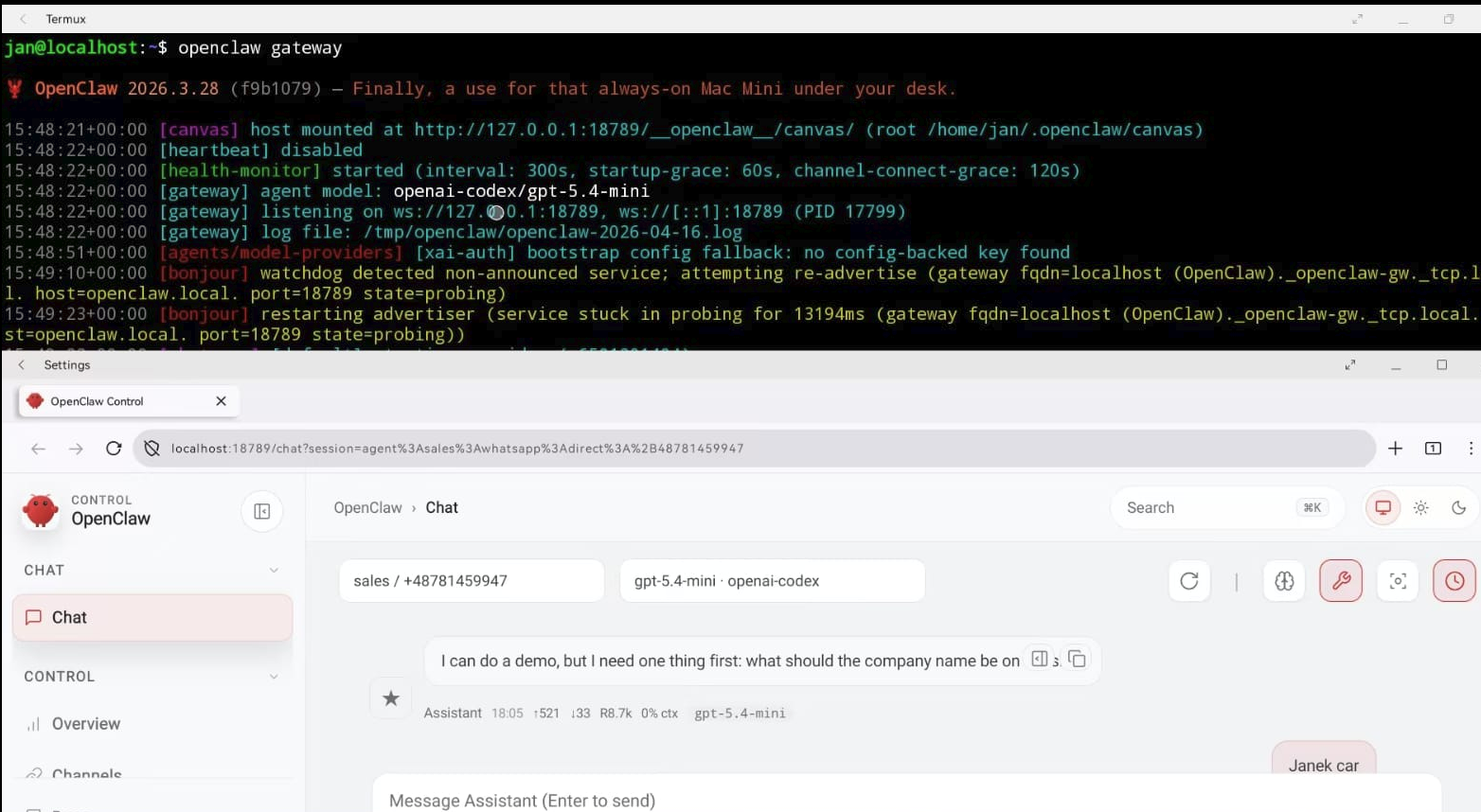
Treat this as an operator handoff, not a conceptual overview. Start the OpenClaw process, confirm the gateway port, and turn that into the exact URL you will open for the admin page.

# inside tmux + Debian
mkdir openclaw
cd openclaw
curl -fsSL https://openclaw.ai/install.sh | bash
openclaw onboard --install-daemon
openclaw gateway start

# discover the gateway
open http://127.0.0.1:18789/
Keep it in `tmux` Launch the gateway from the long-lived session so reconnects do not kill your service.
Find host + port The phone Wi-Fi IP plus port `18789` becomes the gateway URL for the admin page and API.
Use the right address Use `127.0.0.1:18789` on the phone itself, or `http://<phone-ip>:18789` from a laptop on the same network.
OpenClaw running in Termux on the phone
Start inside Debian
Get phone IP
Verify `/health`

The output of this step is one thing: a reachable gateway URL, usually `http://<phone-ip>:18789`, that you can open from the phone or from a laptop on the same LAN.
Slide 10 / Channel Setup

Step 5: enable WhatsApp and lock down senders

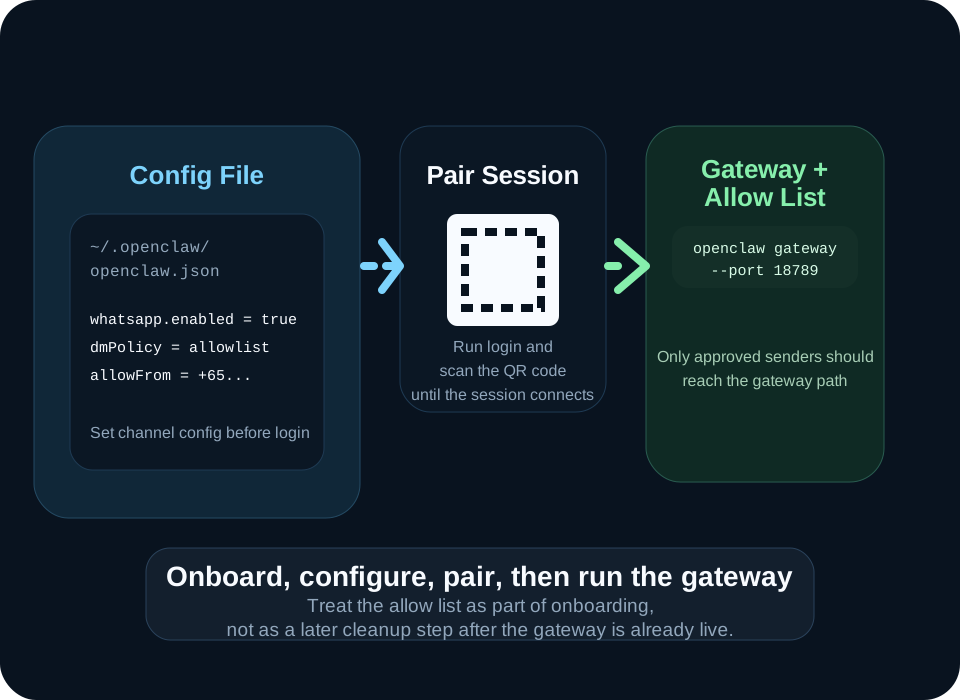
After OpenClaw is installed, edit the channel config, pair WhatsApp with the QR flow, then start the gateway and allow only approved senders before testing.

Install the daemon Run `openclaw onboard --install-daemon` first so the runtime and config path are created cleanly.
Edit `openclaw.json` Use `nano ~/.openclaw/openclaw.json` to enable WhatsApp and set the DM policy to an allow list.
Pair using the QR code Run `openclaw channels login --channel whatsapp` and complete the QR handshake until the session is connected.
Allow-list first Add your own test numbers before launching `openclaw gateway --port 18789` so unknown senders never hit the model path.
openclaw onboard --install-daemon
nano ~/.openclaw/openclaw.json
openclaw channels login --channel whatsapp
openclaw gateway --port 18789
WhatsApp channel onboarding and allow-list diagram
Number format Store entries in full international form so matching is deterministic and easy to audit.
Gateway port Use `openclaw gateway --port 18789` so the URL and onboarding flow stay predictable during setup.
Slide 11 / Discussion

Open topics for builders in the room

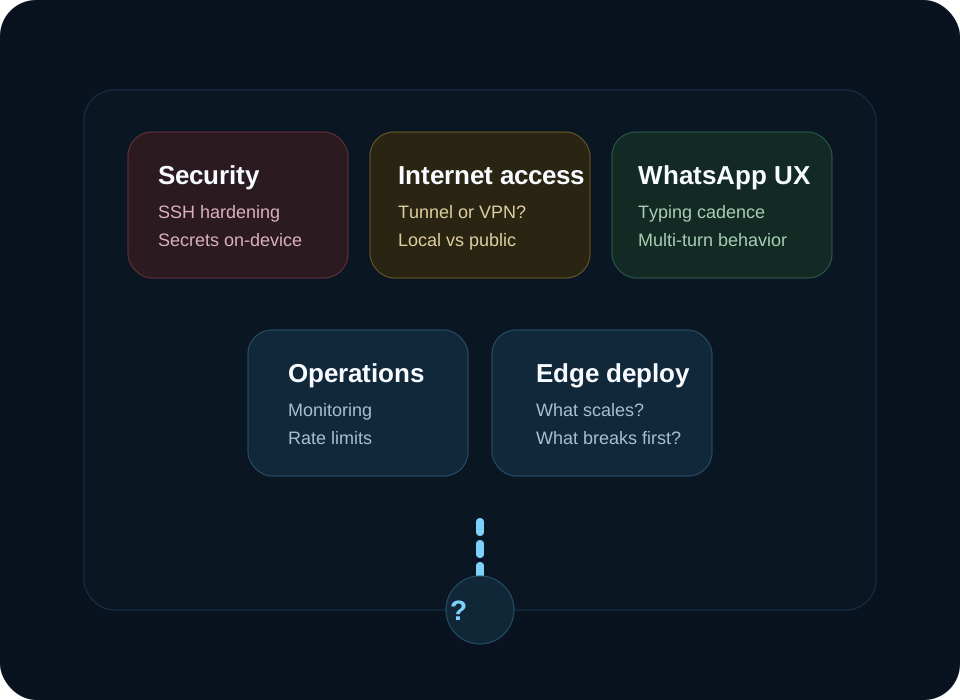
The setup path is clear. The interesting questions now are mostly about production shape, security, and product behavior at the messaging layer.

Security How should we harden SSH, secrets, package trust, and process isolation on a phone-hosted service?
Beyond localhost What is the cleanest path to internet reachability: tunnel, VPN, reverse proxy, or something else?
Human-like interaction How should the WhatsApp side feel less like an instant one-shot model reply and more like a natural conversation?
Operational model What would you monitor, rate-limit, or automate first if this became a real edge deployment pattern?
Open questions discussion board illustration